
To add your Nol Card to a Samsung device for tap-and-go payments, you must use the official RTA nol Pay app, not the Samsung Wallet app itself. This app digitizes your physical card, allowing your Samsung phone’s built-in NFC (Near Field Communication) to function as your new digital Nol Card.
Get Started Fast:
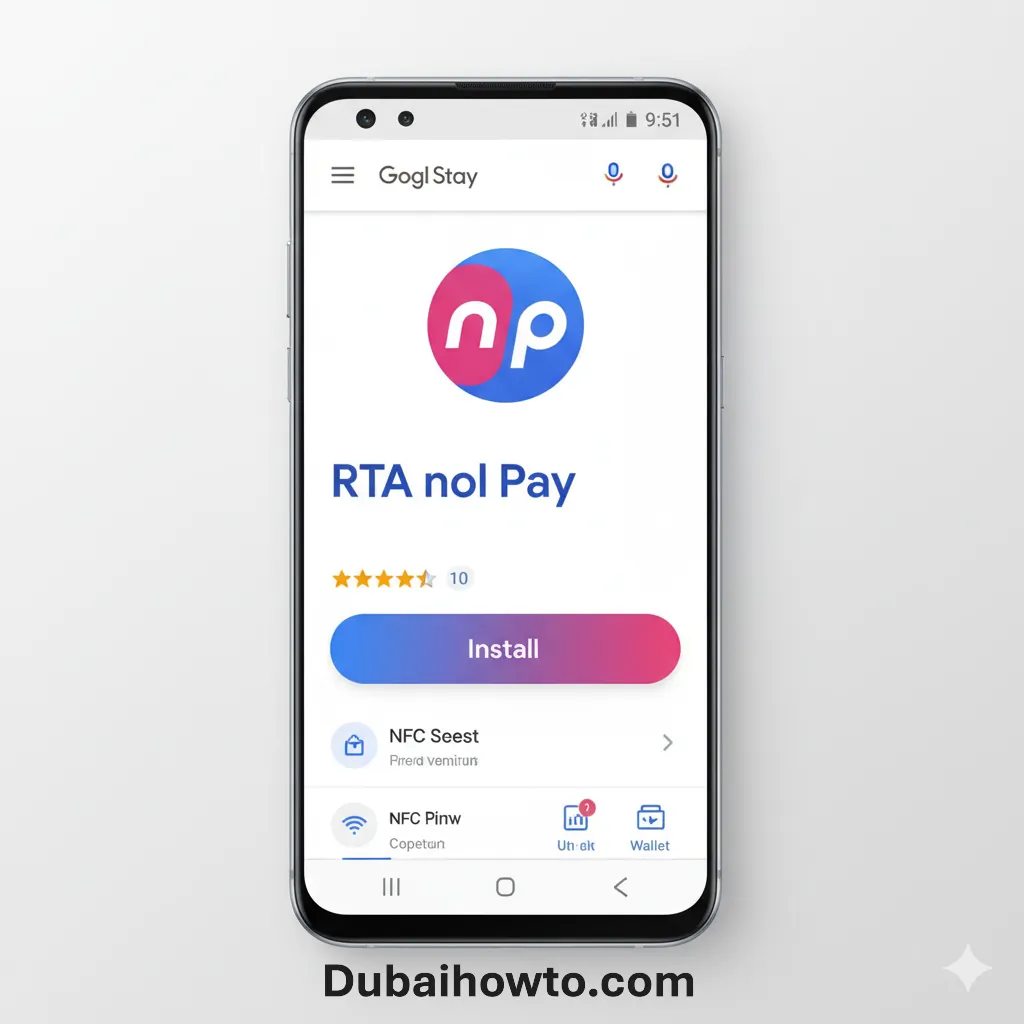
- Download the App: Install the official ‘nol Pay’ app from the Google Play Store.
- Enable NFC: Go to your Samsung phone’s ‘Settings’ > ‘Connections’ and ensure ‘NFC and contactless payments’ is turned on.
- Grab Your Card: Have your physical Nol Card ready to be scanned by the app.
Understanding the Process: nol Pay vs. Samsung Wallet
A common point of confusion is how the Nol Card integrates with Samsung devices. While you use a Samsung phone, the RTA (Roads and Transport Authority) manages the Nol card system through its own dedicated application.
Why you must use the RTA nol Pay app?
The RTA requires that all Nol Card virtualizations happen through their secure ‘nol Pay’ app. This app is specifically designed to read your physical card, transfer its balance and data, and create a secure digital version on your phone. Samsung Wallet is designed for bank-issued credit and debit cards, not specialized transit cards like the Nol.
How your Samsung phone enables payment?
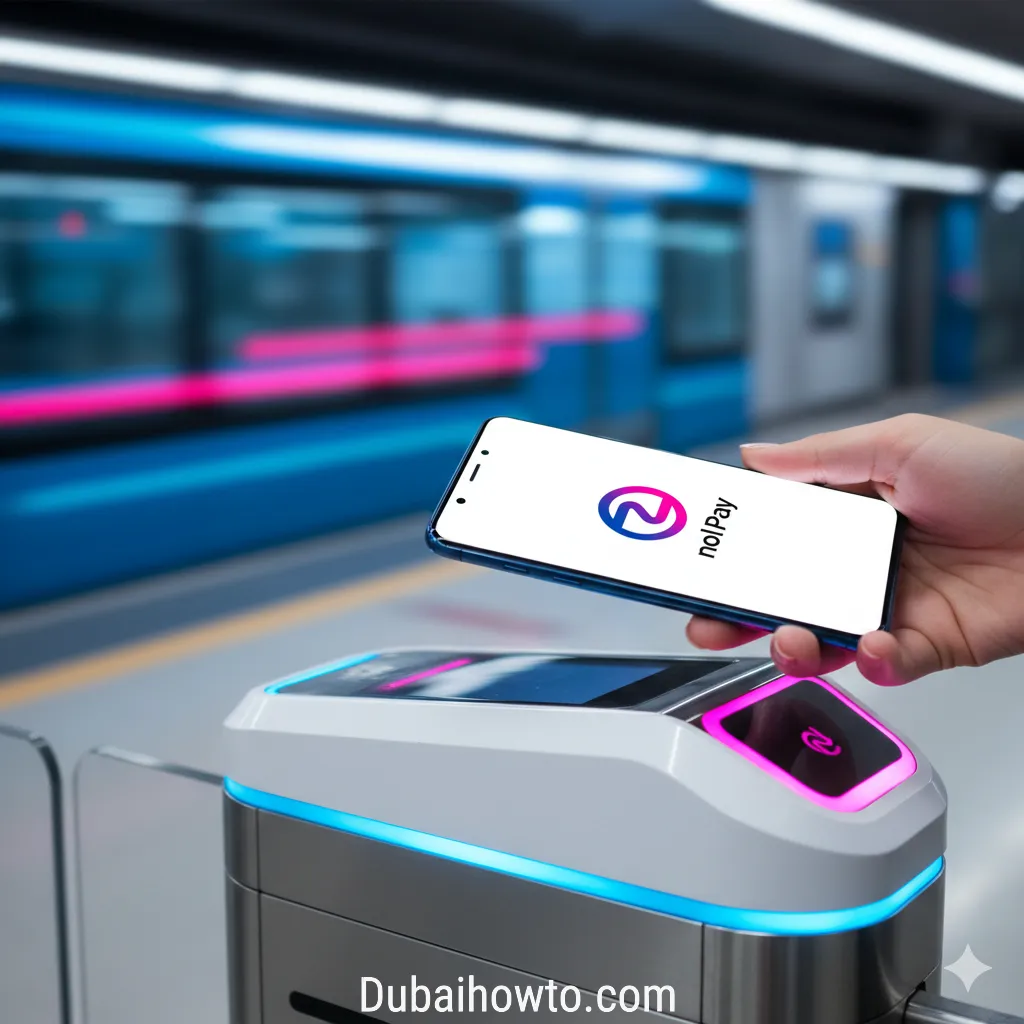
Once your card is digitized within the ‘nol Pay’ app, it uses your Samsung phone’s built-in NFC hardware. When you tap your phone on a payment terminal at a metro gate or on a bus, the RTA’s system recognizes the secure digital card from the ‘nol Pay’ app, even if the app isn’t open.
Compatibility Check: Requirements for Digital Nol Cards
Before you begin, ensure your device and card are compatible with the service. This process will not work with all phone models or Nol card types.
Supported Samsung devices
Your Samsung smartphone must be an Android device equipped with NFC capabilities. Most modern Samsung Galaxy models (suchS, Note, A, and Z series) include this feature. You must also be in the UAE and have access to the UAE Google Play Store to download the correct app.
Eligible Nol Card types
You can digitize most standard Nol cards, including the Silver and Gold personal cards. However, some card types may not be eligible for digitization.
Note: You cannot digitize the anonymous (unregistered) red Nol tickets or certain concession cards. You must have a registered personal card.
Here is a quick overview of the requirements.
| Feature | Requirement |
| Phone Hardware | Samsung smartphone with NFC |
| Operating System | Android (latest versions recommended) |
| Required App | RTA ‘nol Pay’ (from Google Play Store) |
| Eligible Card | Registered Personal Nol Card (e.g., Silver, Gold) |
| Account | RTA Account (you can create one in the app) |
How to Add Your Nol Card to Your Samsung Phone? Step-by-Step
Follow these exact steps to convert your physical Nol Card into a digital one on your Samsung device.
Step 1: Download and install the nol Pay app
Go to the Google Play Store on your Samsung phone. Search for “nol Pay” and install the official app published by the RTA.
Step 2: Register or log in
Open the ‘nol Pay’ app. You will need to either log in to your existing RTA account or create a new one. This account links your digital card to your identity.
Step 3: Select the ‘Digitize Nol Card’ option
Once logged in, navigate the app’s home screen. Look for an option labeled “Digitize Physical Nol Card” or “Add Card.”
Step 4: Scan your physical card
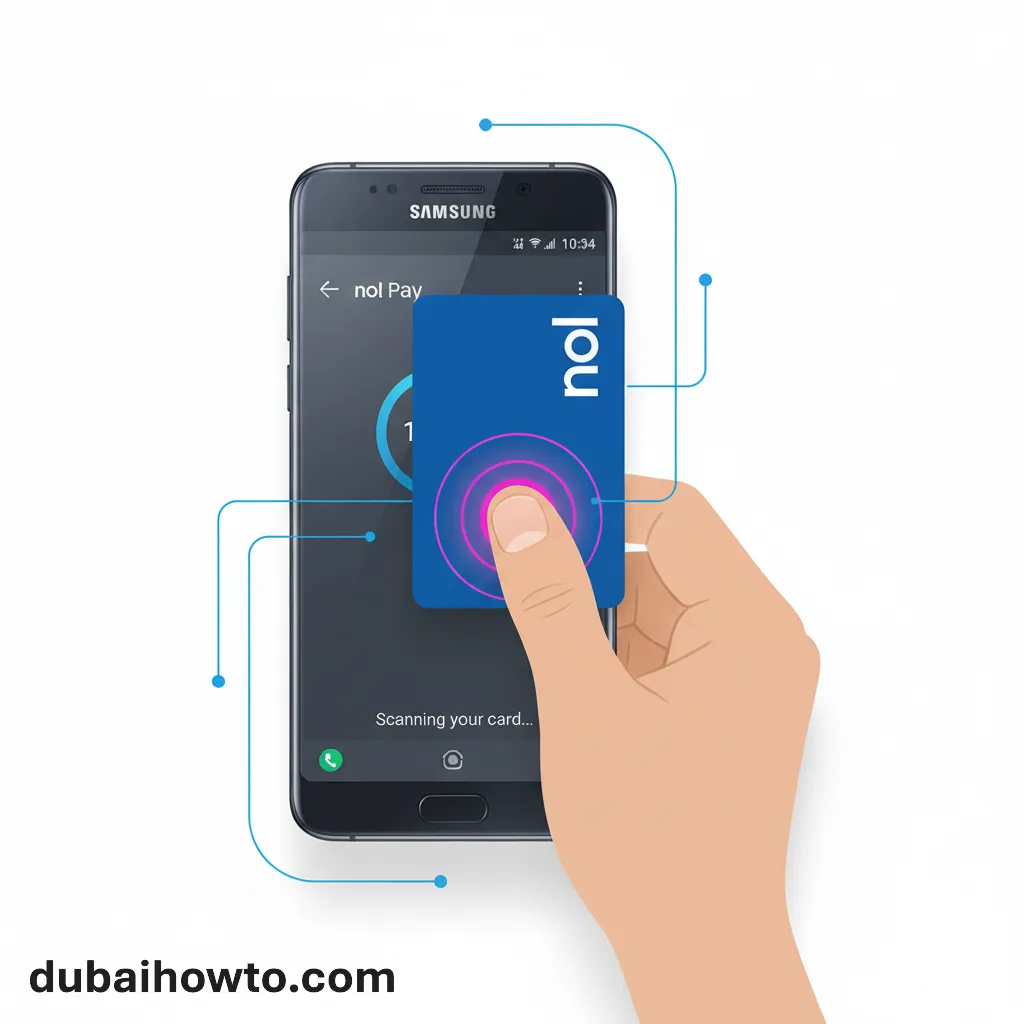
The app will ask you to scan your card. Turn your physical Nol Card over and press it firmly against the back of your Samsung phone, typically near the camera area where the NFC antenna is located. Hold it still until the app confirms it has read the card successfully.
Step 5: Confirm card details and transfer
The app will display your card’s details, including the current balance (in AED). You will be prompted to confirm that you want to transfer this card and its balance to a new digital version.
Step 6: Complete the digitization
Follow the final on-screen prompts. The app will create a secure digital version of your card. Your physical card will be deactivated, and its balance will be transferred to the new digital card inside the ‘nol Pay’ app.
How to Use Your New Digital Nol Card?
Using your Samsung phone to pay is now simple.
Tapping to pay at gates and terminals
You do not need to open the ‘nol Pay’ app to use it. Simply ‘wake’ your phone (you don’t even need to unlock it) and tap the back of the device against the Nol card reader at the metro gate, bus entrance, or parking meter. You should hear a beep and see a confirmation, just as you did with your physical card.
Checking your balance and topping up
The primary benefit of the ‘nol Pay’ app is easy management. You can open the app at any time to check your digital card’s real-time balance. You can also top up your card directly within the app using a debit or credit card, saving you from waiting in line at a machine.
Pro Tip: Set Your Default Payment
In your Samsung’s ‘Settings’ > ‘Connections’ > ‘NFC and contactless payments’, you can tap on ‘Contactless payments’ and select ‘nol Pay’ as the default. This can help ensure the RTA’s app responds first at transit terminals, even if you also have Samsung Wallet set up for bank cards.
Final Thoughts
While you don’t add your Nol Card to the Samsung Wallet app, the end result is what most users want: the ability to pay for Dubai’s RTA services by tapping their Samsung phone.
By following the steps to digitize your card using the official ‘nol Pay’ app, you replace your physical card with a more convenient, secure, and easier-to-manage digital version. This entire process, reflecting updates for 2026, streamlines your commute and integrates your travel pass directly into the device you use every day.
Frequently Asked Questions (FAQs)
Do I need to open the nol Pay app every time to pay?
No. Once your card is digitized, you only need to wake your phone’s screen (not unlock it) and tap the back of your Samsung device on the RTA card reader. The phone’s NFC will handle the payment automatically.
What happens to my physical Nol Card after I digitize it?
Once the digitization is complete and your balance is transferred, your physical Nol Card is permanently deactivated. You can no longer use it for payments and can dispose of it.
Can I transfer my digital Nol Card to a new phone?
Yes, but you cannot have the same digital card active on two phones at once. You will typically need to log in to your RTA account on the new device and follow the app’s procedure for transferring an existing digital card.
What if my phone battery dies?
If your Samsung phone’s battery is dead, you will not be able to use your digital Nol Card. This is a key difference from a physical card. It is recommended to keep your phone charged while commuting.
Last updated: October 2026
Reviewed by: RTA Transit Systems Specialist

Author: The DubaiHowto Editorial Team
DubaiHowto is an independent informational platform created to help UAE residents and visitors understand everyday services such as public transport, telecom, government procedures, visas, fines, and utility systems.
Our editorial team researches and verifies content using official UAE sources (including government portals, service providers, and regulatory authorities) and real on-ground experience of living in the UAE. Each guide is written to be practical, easy to understand, and regularly updated to reflect the latest rules, fees, and procedures.
We focus on clarity, accuracy, and usefulness — especially for people navigating UAE systems for the first time. Learn More about DubaiHowto.
Last reviewed: February 2026. Sources: Official UAE portals and service providers