
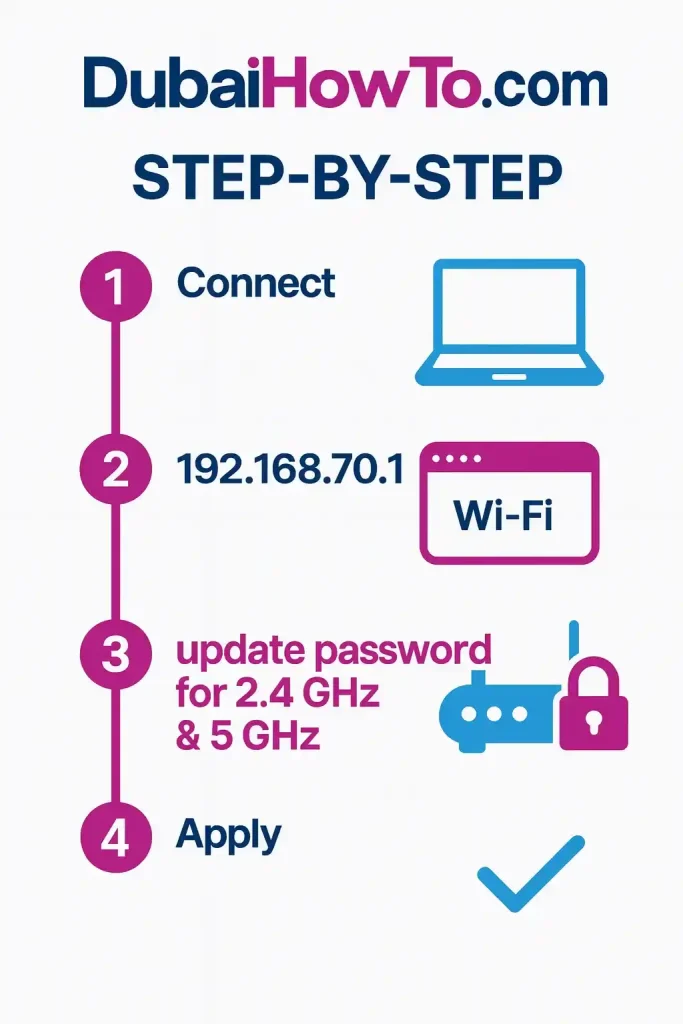
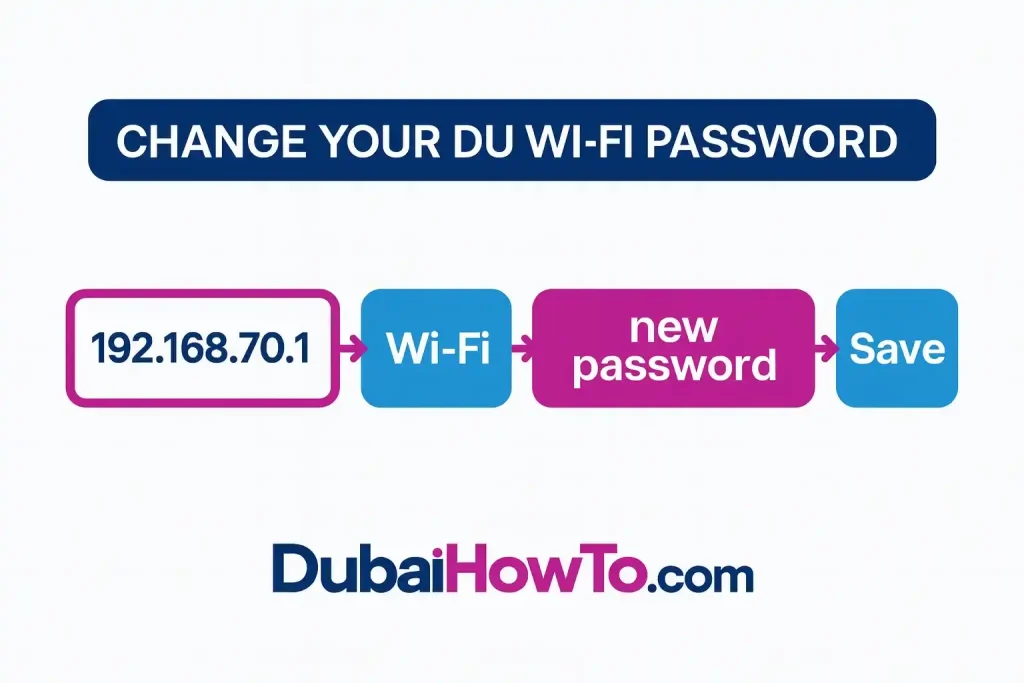
To change your du WiFi password, connect to your home network, open your router page (try 192.168.70.1, 192.168.1.1, or 192.168.0.1), sign in with the admin details on the router sticker, then update the Wi-Fi/WLAN password for 2.4 GHz and 5 GHz, save, and reconnect your devices.
Do this next to change your du wifi password:
- Note your router’s admin username/password from the sticker.
- Open a browser and go to 192.168.70.1 (or 192.168.1.1 / 192.168.0.1).
- Change Wi-Fi password(s) → Save/Apply, then reconnect phones, TVs, and smart devices.
Method 1: Change your du Wi-Fi password on the router (web method)
Step 1 — Connect to your du Wi-Fi
Use a phone/laptop already on your du home network. Stay near the router to avoid drops while saving settings.
Step 2 — Find the router address (IP)
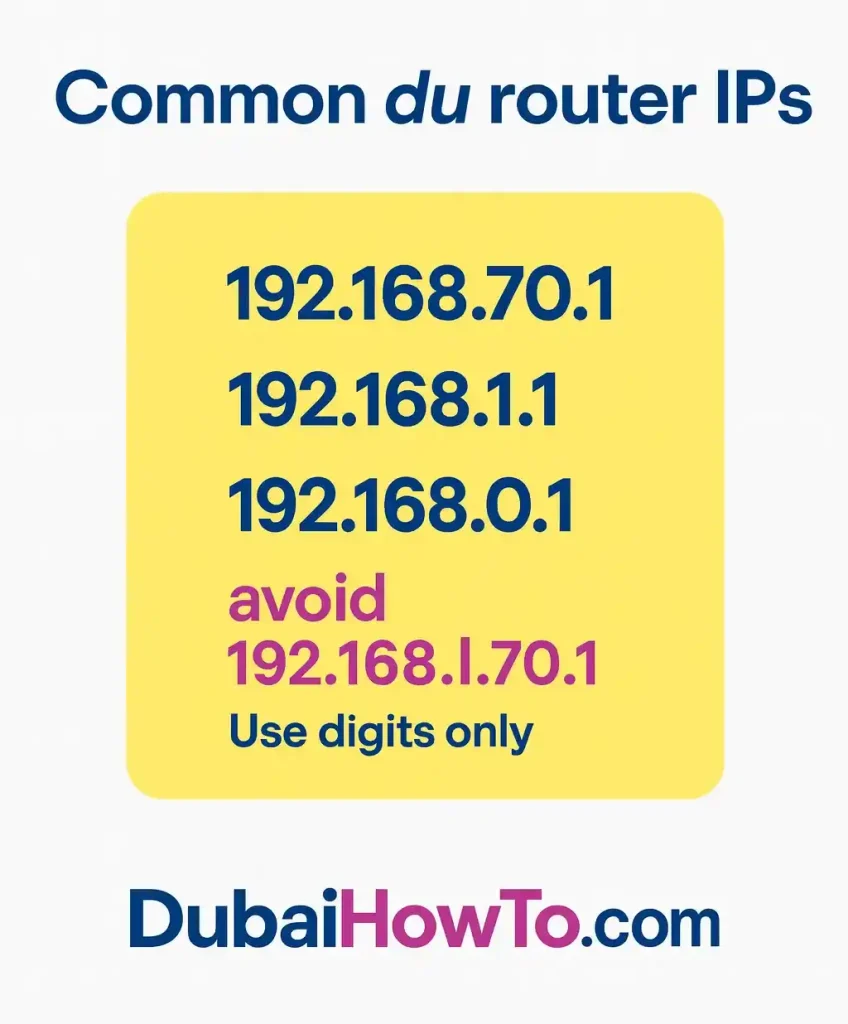
Try 192.168.70.1 first (common on du CPE), then 192.168.1.1 or 192.168.0.1.
Tip: On your device, check the connected network details and look for Gateway/Router.
Step 3 — Sign in to the router
Enter the admin username/password printed on the router label (not your Wi-Fi password). If you changed the admin login before and forgot it, see Reset options below.
Step 4 — Open Wi-Fi/WLAN settings
Look for Wireless, WLAN, or Wi-Fi. If you have dual-band or smart connect, you’ll see separate entries for 2.4 GHz and 5 GHz or a combined option.
Step 5 — Change the password(s)
Edit Password/Pre-Shared Key/WPA Key. Use a long passphrase (see security tips below). If you keep separate SSIDs (network names), update both 2.4 GHz and 5 GHz.
Step 6 — Apply and wait
Click Save/Apply. The router may refresh or briefly reboot. Your device might disconnect when the new password takes effect.
Step 7 — Reconnect everything
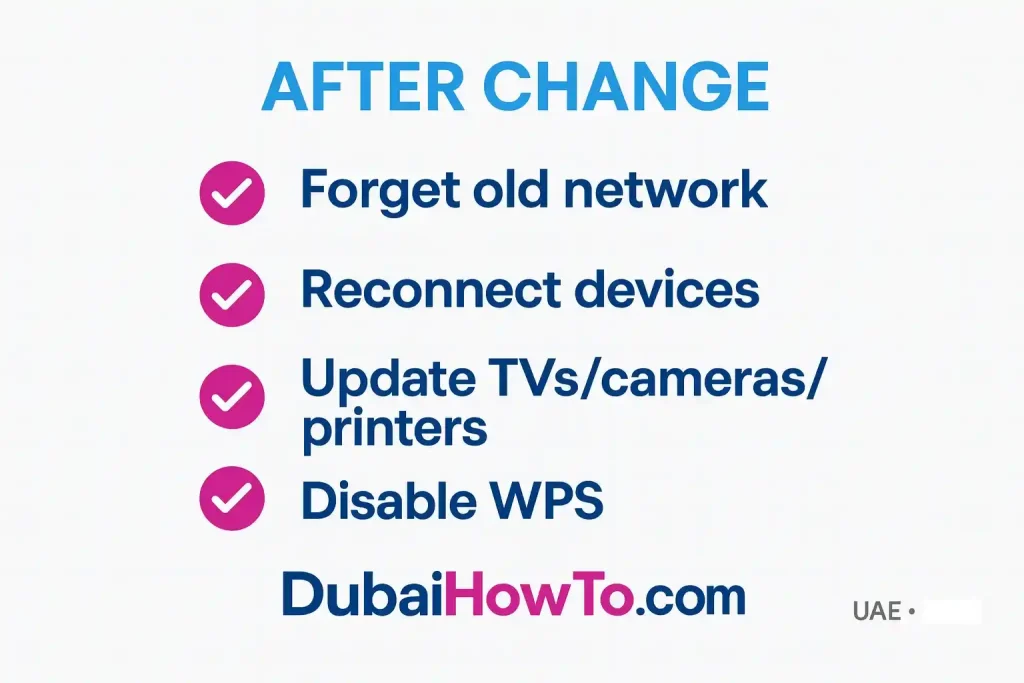
On each device, Forget the old network and join with the new password. Don’t miss TVs, cameras, printers, smart plugs, and set-top boxes.
Method 2: Use the du app to change du wifi password (where your router supports it)
Step 1 — Sign in to the du app
Open the du app with your account number/mobile ID associated with your home internet.
Step 2 — Find your home gateway
Look for Home Internet / Wi-Fi controls. Some models expose Wi-Fi name & password here; others require the web method.
Step 3 — Update and confirm
Edit the Wi-Fi password (and SSID if needed), Save, then reconnect your devices as above.
Fix common issues quickly
Wrong address typed (the “l” vs “1” mistake)
If you entered https //192.168.l.70.1 (with letter l), it will fail. The correct address uses the number 1: https://192.168.70.1. You can omit https:// and just type 192.168.70.1 in the address bar.
Can’t log in to the router
Double-check the admin credentials on the sticker. If they were changed, ask the person who changed them. Some routers limit attempts—wait a minute before retrying.
Forgot the admin password (hard reset)
Press and hold the RESET pin-hole for ~10–15 seconds until LEDs blink. This restores factory settings (and the sticker’s admin login). You’ll then reconfigure Wi-Fi from scratch.
No Wi-Fi after saving
If “Smart Connect” merged your bands and a device won’t join, temporarily set separate SSIDs for 2.4 GHz and 5 GHz and connect the device to 2.4 GHz (older gadgets prefer it).
Make it secure and fast (UAE-ready settings)
Use a strong passphrase
Aim for 14–20 characters with mixed case, numbers, and symbols (e.g., a memorable phrase with tweaks).
Encryption: WPA2/WPA3
Select WPA2-PSK or WPA2/WPA3 Mixed if available. Avoid WEP and open networks. Disable WPS to prevent easy brute-force entry.
Name your networks clearly
Use distinct SSIDs if you split bands, e.g., Home-24 and Home-5G. Avoid personal details (name/flat number) in the SSID.
Keep firmware current
Check Maintenance → Firmware and apply updates to improve security and stability.
Use a guest network
Create a Guest Wi-Fi for visitors. Limit bandwidth and block access to your main devices (NAS, printers, cameras).
Quick reference: du router addresses & menu paths
Common access details on du-supplied routers
(Labels and menus vary by model/firmware; use this as a guide.)
| What you see on sticker | Router page (IP) | Where to change Wi-Fi password | Notes |
|---|---|---|---|
| “Gateway / Router” | 192.168.70.1 | Wireless/WLAN → Security → Password/PSK | Frequently seen on recent du CPE. |
| “Default access” | 192.168.1.1 | Wi-Fi → SSID (2.4/5 GHz) → WPA Key | Common across many home routers. |
| “Access via browser” | 192.168.0.1 | Network → Wi-Fi settings → Passphrase | Alternate default on some models. |
| “LTE/5G CPE” | 192.168.8.1 | Home → WLAN → WPA pre-shared key | Seen on some Huawei/Nokia 4G/5G units. |
Caption: If none of these work, read the Gateway/Router field in your device’s network info and use that IP.
Pro Tip
Use a password manager to store both your router admin login and the Wi-Fi password. Keep a printed backup in a safe place so the whole household can reconnect quickly after changes.
FAQs on how to change your du wifi password
Is “https //192.168.l.70.1” correct for du?
No. That uses the letter l instead of the number 1. The correct address is 192.168.70.1. You can enter it directly in the browser bar, no “http/https” required. If it still fails, check your device’s Gateway address and use that number.
Should I change both 2.4 GHz and 5 GHz passwords?
Yes—update the password for each band (or the single combined SSID if Smart Connect is enabled). Keeping them consistent avoids confusion, but separate names can help older devices join 2.4 GHz reliably.
Will devices disconnect immediately after I save?
Yes. Once you hit Save/Apply, the router updates security settings and clients drop off. Reconnect by selecting your network name and entering the new password on each device.
How often should I change my du Wi-Fi password?
For homes, every 6–12 months is reasonable, or immediately if you shared it widely, suspect neighbors are connected, or you see unfamiliar devices in the router’s Client List.
Last updated: October 2026
Reviewed by: Dubaihowto Telecom Desk — Technical Review

Author: The DubaiHowto Editorial Team
DubaiHowto is an independent informational platform created to help UAE residents and visitors understand everyday services such as public transport, telecom, government procedures, visas, fines, and utility systems.
Our editorial team researches and verifies content using official UAE sources (including government portals, service providers, and regulatory authorities) and real on-ground experience of living in the UAE. Each guide is written to be practical, easy to understand, and regularly updated to reflect the latest rules, fees, and procedures.
We focus on clarity, accuracy, and usefulness — especially for people navigating UAE systems for the first time. Learn More about DubaiHowto.
Last reviewed: February 2026. Sources: Official UAE portals and service providers