
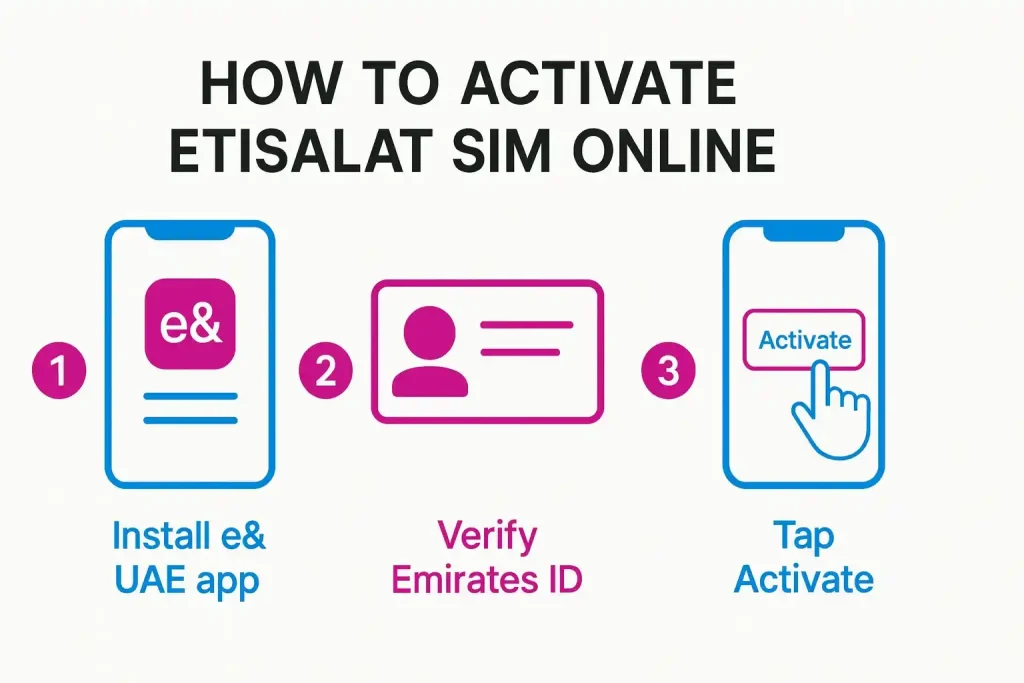
Activate your Etisalat line in minutes using the e& UAE app: sign in (mobile/UAE PASS), verify your Emirates ID (KYC), then choose Activate SIM/eSIM and follow the prompts. Most prepaid activations are instant; postpaid or replacements can take longer (up to 24 hours). Restart your phone after completion.
Follow this step-wise process to activate Etisalat sim online:
Step 1: Install e& UAE (App Store/Google Play) and sign in (or use UAE PASS).
Step 2: Verify Emirates ID when prompted.
Step 3: Select Activate SIM or Switch to eSIM → complete steps → restart.
Method 1: How to Activate Etisalat Sim Via the e& UAE app
Step 1: Download & sign in
- Get e& UAE from your app store and open it.
- Sign in with your Etisalat number, username/password, or UAE PASS (supported).
- Allow any requested permissions for verification.
Step 2: Verify your ID (KYC)
- Keep your Emirates ID handy.
- Complete in-app prompts (ID match; selfie only if asked).
- If your ID expired, renew/update first or activation may pause.
Step 3: Choose SIM vs eSIM
- For a physical SIM, proceed with activation and insert the card.
- For eSIM, generate/receive the eSIM profile/QR in the app, then add it in phone settings (details below).
Step 4: Confirm & restart
- Confirm number/plan, submit, then restart the phone to register on the network.
Method 2: Activate Etisalat Sim Physically (new users)
Insert, open app, and verify
- Insert the SIM; open e& UAE and log in.
- Complete ID verification (Emirates ID).
Network registration & test
- After the success message, restart the device.
- Place a quick call and check mobile data.
eSIM activation (iPhone & Android)
Check compatibility
- Ensure your device supports eSIM and has the latest OS.
- Keep Wi-Fi or data on during setup.
Get your eSIM profile/QR
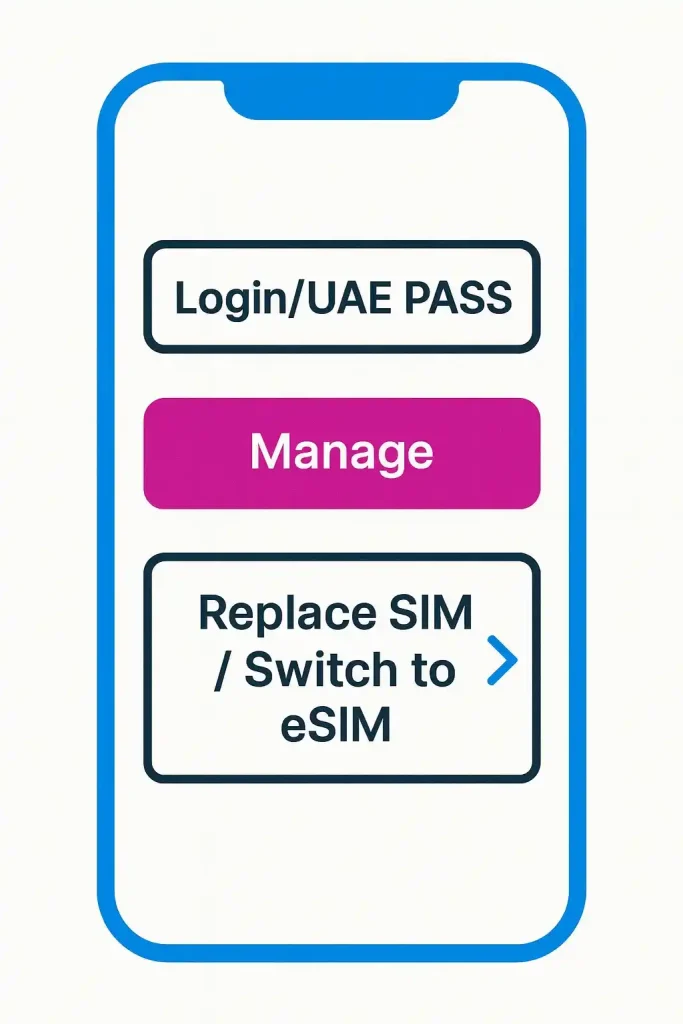
- In e& UAE: Manage → pick your line → Replace SIM / Switch to eSIM → confirm.
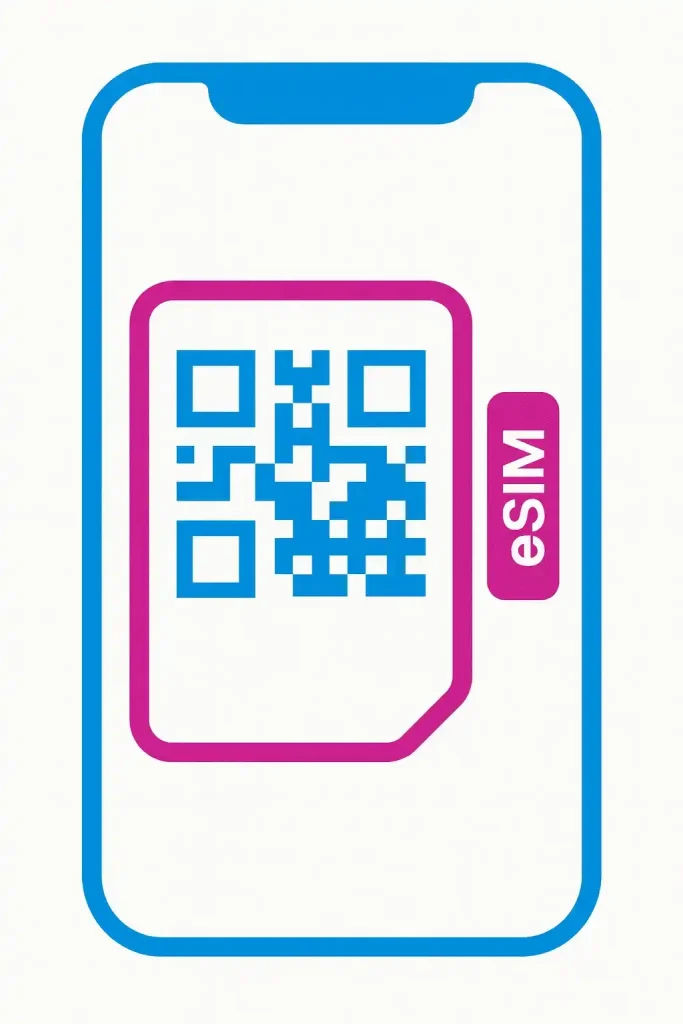
- You’ll see or receive an eSIM profile/QR (new numbers can also get a QR from an agent).
Add eSIM on your phone
- iPhone: Settings → Cellular → Add Cellular Plan → scan QR → follow prompts.
- Samsung/Android: Settings → Connections/SIM card manager → Add eSIM/Add mobile plan → scan QR → finish.
- Label primary/secondary if dual-SIM; set preferred line for data/calls.
Moving eSIM to a new device
- You generally need to replace/switch the eSIM from within the e& UAE app to issue a new profile. Old profiles typically can’t be reused.
SIM swap or replacement (lost/damaged)
Proving ownership
- You’ll need Emirates ID; the number must be under your profile.
Where to switch
- Use the e& UAE app for Replace SIM/Switch to eSIM, or visit a store if the app can’t verify you.
- A replacement can take up to 24 hours in edge cases.
After activation: test & optimize
Basic checks
- Calls/data test: place a call; run a quick speed test.
- APN: usually auto-configures; if not, check APN defaults in settings.
Roaming & add-ons
- If you’re traveling, confirm roaming and add-ons in app before departure.
Troubleshooting & common errors
“Pending verification”
- Your Emirates ID or KYC check is incomplete/expired. Update ID in the app, then retry.
“SIM not registered under your ID”
- Number ownership mismatch. Fix profile details or visit a store with your Emirates ID.
Dual-SIM conflicts
- Ensure the activated line is set as Primary (calls/data). Toggle airplane mode, then retry.
eSIM profile issues
- Delete the eSIM profile, re-issue via the app, and scan again with stable internet.
When to contact support
- If activation exceeds 24 hours or errors persist, call 101 or visit a store.
Fees, timelines, and limits (quick view)
| Item | Typical outcome |
|---|---|
| New prepaid activation | Usually instant after KYC |
| Postpaid activation | Minutes → a few hours after approval |
| eSIM conversion | Instant to ~1 hour after scanning QR/profile |
| SIM replacement | Up to 24 hours in some cases |
| Costs | New activations often free; eSIM/replacements may have fees or promos |
Pro Tip: If your new eSIM won’t add, connect to Wi-Fi, remove any half-installed mobile plan, reboot, then re-issue the eSIM from the app and scan the fresh QR. This avoids caching an invalid profile.
FAQs on how to activate Etisalat Sim UAE
Can I activate Etisalat while abroad?
New SIMs must be activated in the UAE due to ID checks. If you already have a UAE line, you may switch to eSIM remotely via the app and scan the QR on your device.
How do I check activation status?
Open e& UAE to see line status. You can also dial *101# for quick account actions. If nothing changes after 24 hours, call 101.
Do I need Emirates ID?
Yes—UAE rules require Emirates ID (with limited allowances for other IDs in specific categories). Incomplete/expired ID blocks activation.
My data works but calls don’t. Why?
Check preferred line settings (dual-SIM), toggle airplane mode, and ensure VoLTE is enabled if supported. If still failing, re-issue the eSIM or contact 101.
Last updated: October 2026 • Reviewed by: Editorial telecom team
More guides you may need

Author: The DubaiHowto Editorial Team
DubaiHowto is an independent informational platform created to help UAE residents and visitors understand everyday services such as public transport, telecom, government procedures, visas, fines, and utility systems.
Our editorial team researches and verifies content using official UAE sources (including government portals, service providers, and regulatory authorities) and real on-ground experience of living in the UAE. Each guide is written to be practical, easy to understand, and regularly updated to reflect the latest rules, fees, and procedures.
We focus on clarity, accuracy, and usefulness — especially for people navigating UAE systems for the first time. Learn More about DubaiHowto.
Last reviewed: February 2026. Sources: Official UAE portals and service providers