
Changing your Etisalat Wi-Fi password takes a few minutes. Use the My Etisalat UAE app for the quickest route, or log in to your router’s web page if you want full control. After saving, reconnect devices and, if needed, update smart-home gadgets that cache old credentials.
Follow this step wise process to change Etisalat password:
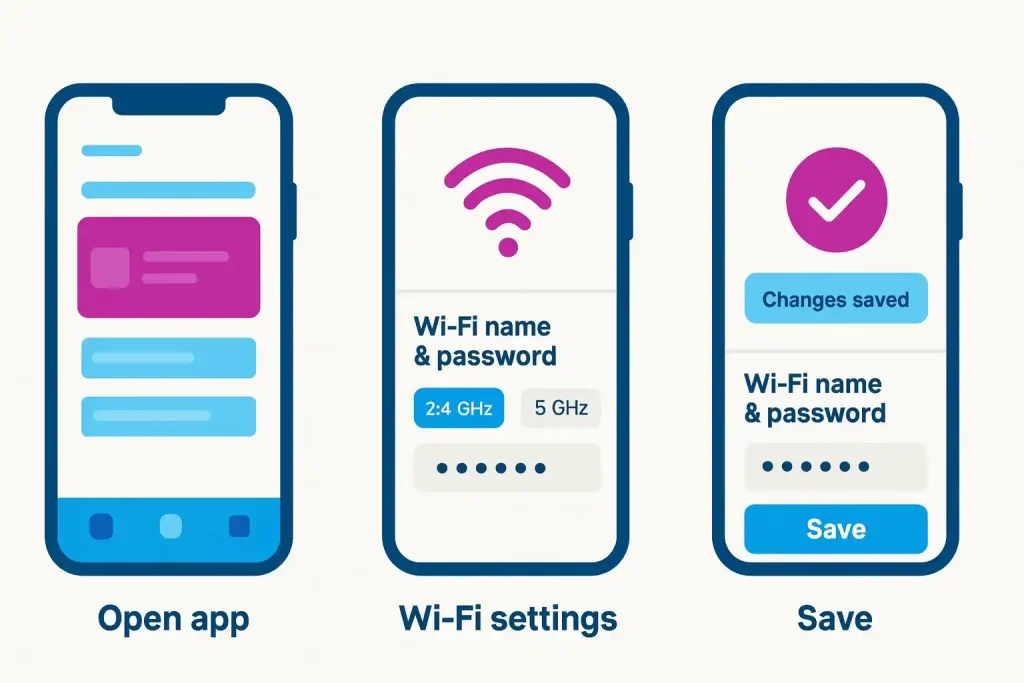
Step 1: Open My Etisalat UAE → Home internet → Wi-Fi settings.
Step 2: Set a new passphrase (WPA2/WPA3), save, and reconnect devices.
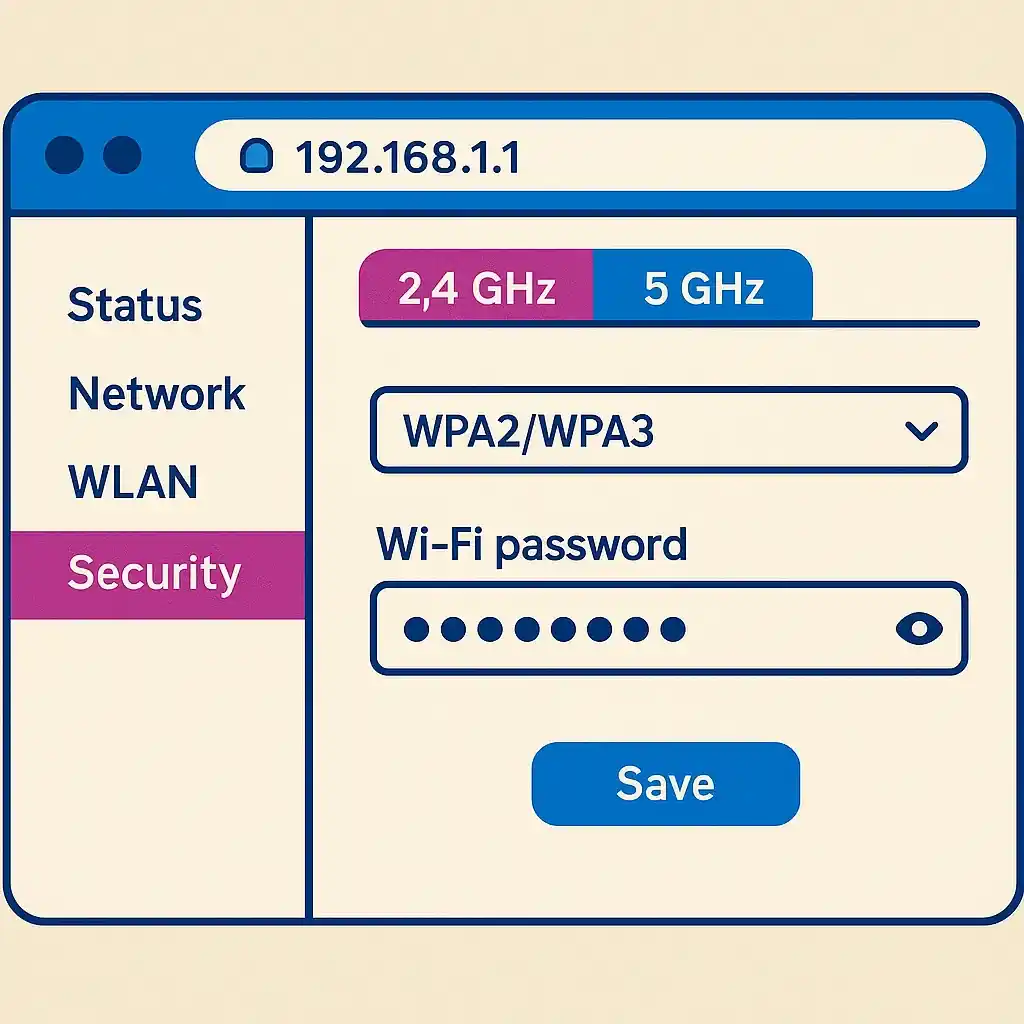
Step 3: If you can’t see Wi-Fi controls, log in to the router page at 192.168.1.1.
Quick methods (which one should you use?)
App vs router at a glance
| Method | Where you do it | Time | Best for |
|---|---|---|---|
| My Etisalat UAE app | Account → Home internet → Wi-Fi | 2–3 min | Fast updates without hunting through menus |
| Router web page | 192.168.1.1 (or your gateway IP) | 5–7 min | Full control (SSID, bands, channel, security) |
| Hardware reset | Reset pinhole (press 10–15 sec) | 5–10 min | If you forgot the admin login and nothing else works |
Before you start…
- Make sure you know your current Wi-Fi password (you’ll need to reconnect).
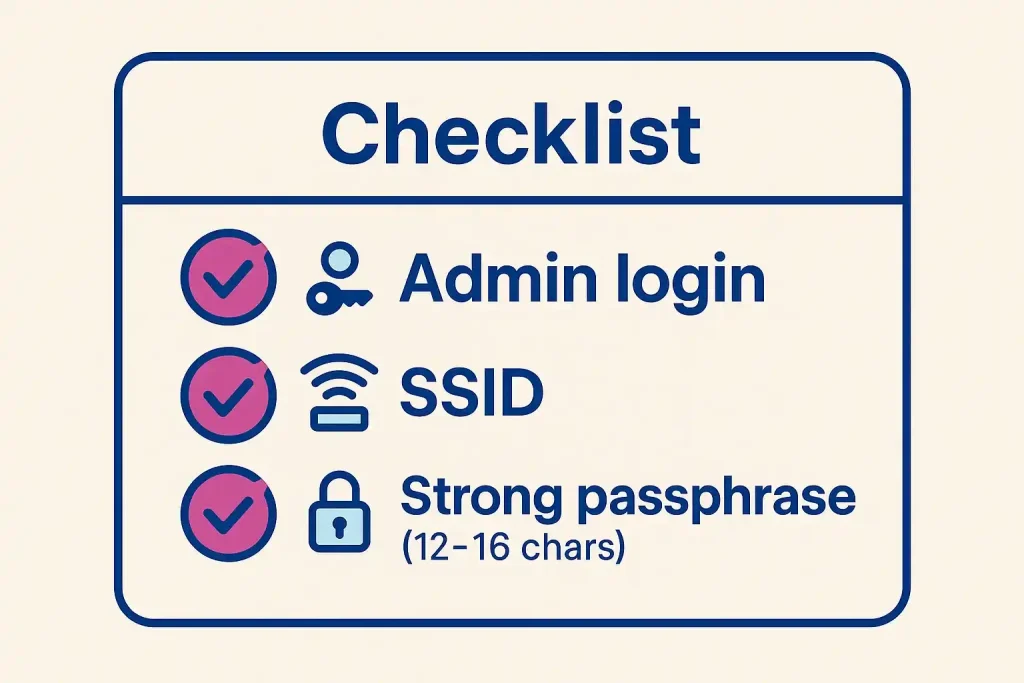
- If using the router page, have the admin login handy.
- Changing the password may temporarily disconnect devices.
What changes when you update the Etisalat WiFi Password?
Some smart/IoT devices (like cameras or plugs) may need a fresh setup if they don’t allow manual password editing.
How to Etisalat Wifi Password via the My Etisalat UAE app?
Step 1: Open the right product tile
Launch the app, sign in, and choose your home internet/eLife line.
Step 2: Find Wi-Fi settings
Look for Wi-Fi name (SSID) & password. Some accounts show 2.4 GHz and 5 GHz separately.
Step 3 Update SSID and passphrase
Use WPA3-Personal if available (or WPA2-PSK). Create a 12–16-character passphrase with letters, numbers, and symbols.
Step 4: Save and reconnect
Tap Save/Apply. Your phone may drop off the old network—reconnect using the new password.
Step 5: Smart-home fixes
If bulbs/cameras won’t join, factory-reset them or temporarily enable a 2.4 GHz-only SSID to complete pairing.
How to change Etisalat WiFi password on the router page? Step-by-step
Step 1: Find your router’s gateway IP
On a connected device, check the Default Gateway (often 192.168.1.1 or 192.168.0.1). Enter it in a browser.
Step 2: Log in with admin credentials
Use the admin username/password printed on the router label (not your Wi-Fi password). If you changed and forgot it, see Forgot admin password below.
Step 3: Open wireless/WLAN settings
Menus differ: Wireless/WLAN → Basic for SSID; Wireless/WLAN → Security for password and WPA2/WPA3.
Step 4: Set the new passphrase (both bands)
Update 2.4 GHz and 5 GHz (and any guest SSID). Use strong, unique passphrases.
Step 5: Apply and verify
Click Save/Apply. Reconnect one device, run a quick speed test, then join the rest.
Router model menu paths (common Etisalat eLife units)
ZTE (example: ZXHN series)
Typical path: Network → WLAN → Security (password) and Network → WLAN → SSID Settings (name).
Nokia ( Beacon / G-series )
Typical path: Wi-Fi → Basic/Security. Some firmwares split bands under Advanced.
Huawei (HG/AX series)
Typical path: WLAN → 2.4G/5G Basic Settings (SSID) and WLAN → Security (WPA2/WPA3, passphrase).
If your labels don’t match, use the router’s Search/Help panel or expand Advanced—manufacturers rename menus between firmware versions.
Security & best-practice settings
WPA3 or WPA2-PSK
Choose WPA3-Personal when available; otherwise WPA2-PSK (AES). Avoid mixed WPA/WEP modes.
Strong, memorable passphrases
Aim for 12–16 characters. Avoid personal names or phone numbers. A short phrase with separators is easier to remember and harder to guess.
Separate a guest network
Enable a Guest SSID for visitors and smart devices. Keep your main network private.
Rename thoughtfully
Changing the SSID can help devices forget stale credentials. Avoid revealing identity or apartment numbers in the name.
Troubleshooting Common Password Change issues
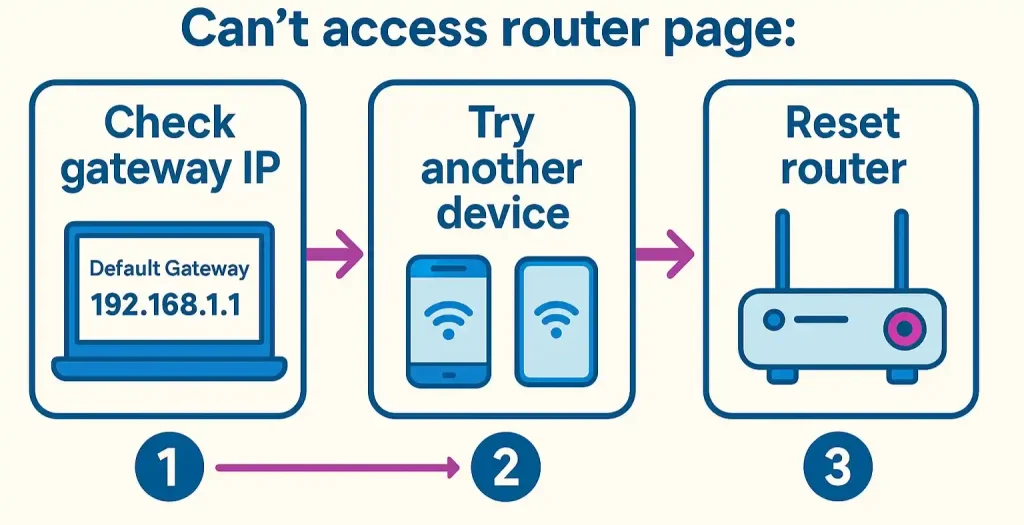
#1: Can’t open 192.168.1.1?
Confirm you’re on home Wi-Fi, not mobile data. Check your Default Gateway on the device. Try another browser or device.
#2: Forgot admin password?
If the sticker login was changed and lost, press and hold the Reset pinhole for ~10–15 seconds (power on). You’ll need to set up Wi-Fi again afterward.
#3: ISP-locked firmware?
Some menus are simplified. Use the app for Wi-Fi edits or contact support to enable advanced options.
#4: Internet drops after the change?
Reconnect with the new password. For IoT devices, force 2.4 GHz temporarily or re-pair from scratch.
Pro Tip: Update both bands and the guest SSID in one sitting, then keep the new password in a secure notes app so family members don’t get stuck on the old network.
FAQs on how to change Etisalat wifi password
What’s the default admin login on Etisalat eLife routers?
Most units have a unique admin password on the back/underside label. This is different from your Wi-Fi password. Use it for the router page. If it doesn’t work, it was changed—reset the router to restore defaults.
Will changing my Wi-Fi password disconnect everything?
Yes. Phones, laptops, TVs, and IoT devices will drop. Re-join using the new passphrase. Smart-home devices that don’t let you edit Wi-Fi may need a full re-pair or factory reset.
Should I also change my Wi-Fi name (SSID)?
It’s optional. Changing the SSID forces devices to treat it as a new network, which can fix sticky re-connect issues—handy if gadgets keep trying the old password.
Last updated: October 2026
Reviewed by: Tech Editor — UAE Home Internet

Author: The DubaiHowto Editorial Team
DubaiHowto is an independent informational platform created to help UAE residents and visitors understand everyday services such as public transport, telecom, government procedures, visas, fines, and utility systems.
Our editorial team researches and verifies content using official UAE sources (including government portals, service providers, and regulatory authorities) and real on-ground experience of living in the UAE. Each guide is written to be practical, easy to understand, and regularly updated to reflect the latest rules, fees, and procedures.
We focus on clarity, accuracy, and usefulness — especially for people navigating UAE systems for the first time. Learn More about DubaiHowto.
Last reviewed: February 2026. Sources: Official UAE portals and service providers